
Your account, plan and app
Sign in, understand your allowance and put the app on your phone or computer.
Use it for
- Install a shortcut on your phone
- Choose a plan for calls or creative work
- Recover an account when you forget your password
- 1Login: sign in or recover access
- 2Pricing: compare current allowances
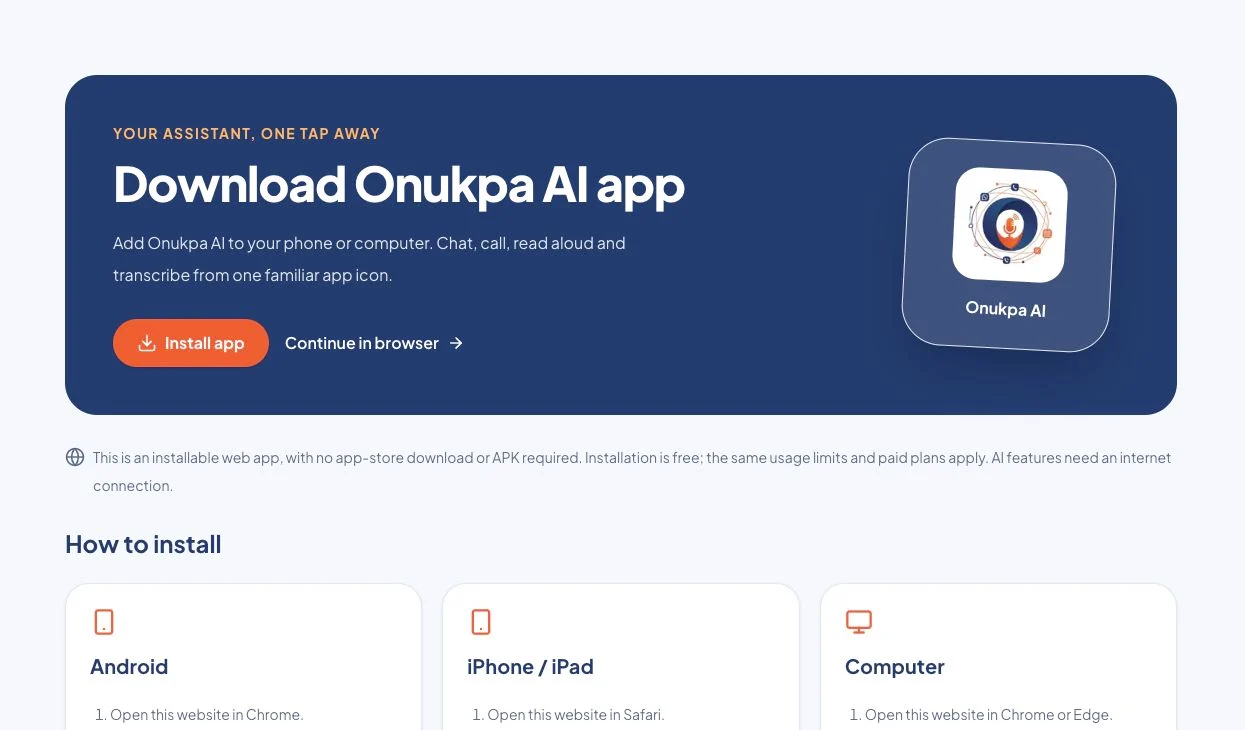
- 3Download app: browser installation instructions
How to use it
- 1
Keep account access
Use the email address you registered with. If you forget the password, choose the recovery option and follow the email link. Confirm new accounts before using account features.
- 2
Check the current plans
Open Pricing to compare allowances and sharing features. Usage limits can apply even when a tool is visible. Review the plan and checkout details before purchasing.
- 3
Install from your browser
Open Download app. Use Install when offered. On iPhone, open Safari and use Share → Add to Home Screen. On Android or desktop, follow the instructions for your browser.
- 4
Stay connected
The installed app opens the same service and still needs an internet connection for AI features. If using an embedded Facebook browser, open the site in Safari or Chrome first.
Good to know
- Installation is not an app-store purchase and does not upgrade your plan.
- Opening the installed app on a new device may require signing in again.
- For browser errors, update the browser, check your connection and retry without submitting the same paid job repeatedly.