
Create a CV or polished document
Prepare job applications, letters and longer drafts, then edit and download them.
Use it for
- Prepare a first CV
- Tailor a cover letter to a vacancy
- Turn a draft into a printable report
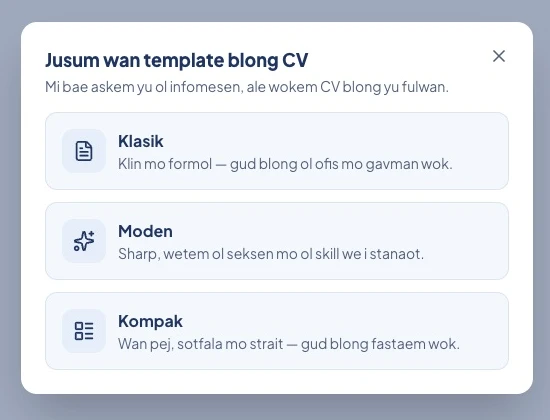
- 1CV: choose a starting layout
- 2Canvas: edit an eligible longer reply
- 3PDF / Word: download a document
How to use it
- 1
Choose your starting point
For a CV, press CV in the Chat composer and choose a template. For a letter or report, describe the document you need in Chat.
- 2
Provide accurate details
Supply your real experience and the job requirements. Ask the assistant to leave placeholders instead of inventing qualifications or contact details.
- 3
Review and edit
Ask for revisions in Chat. Longer eligible replies show a Canvas editing control; use it to adjust the document before exporting.
- 4
Download and inspect
Choose PDF or Word beneath the result. PDF may open your browser’s print dialog: select Save as PDF. Open the downloaded file and check page breaks and spelling.
Try a request like this
“Help me prepare a CV for a receptionist role. Ask for my education and experience one question at a time. Do not invent any details.”
Adapt the names, dates and details before sending. Example requests do not run automatically.
Good to know
- Canvas appears for eligible longer replies; it is not shown on every short answer.
- Downloading a file does not automatically send it to an employer.
- Verify your phone number and email before sharing a CV.